> For the complete documentation index, see [llms.txt](https://docs.qpoint.io/llms.txt). Markdown versions of documentation pages are available by appending `.md` to page URLs; this page is available as [Markdown](https://docs.qpoint.io/readme/architecture-overview/architecture-qplane.md).
# Cloud-Managed (Qplane)
This page describes the architecture for cloud-managed deployments using Qplane (control plane at app.qpoint.io) with Qtap sensors (data plane).
## Overview
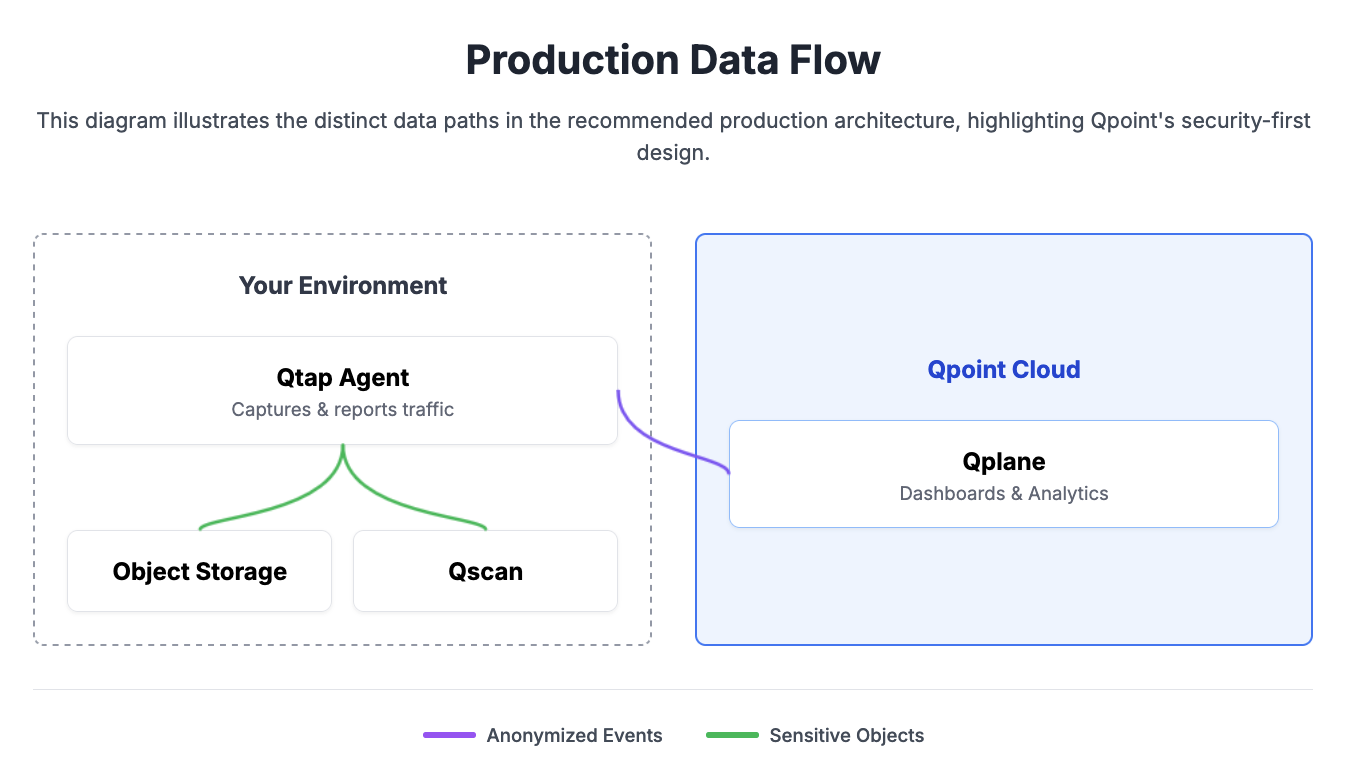
In cloud-managed mode, Qtap sensors (data plane) connect to Qplane (control plane) for centralized configuration management and analytics. This architecture provides real-time dashboards, alerting, and team collaboration features while maintaining data sovereignty for sensitive payloads.
{% hint style="info" %}
**Enterprise Only:** Self-hosted Pulse/ClickHouse infrastructure is available for enterprise customers, enabling centralized event storage and analytics within your own environment. Contact us to find out more.
{% endhint %}
## Data Flow
**Events (Anonymized Metadata):**
```
Qtap (Data Plane) → Pulse API Gateway → ClickHouse Database → Qplane Dashboards (Control Plane)
```
**Objects (Sensitive Payloads):**
```
Qtap (Data Plane) → Your S3 Bucket (or Qplane managed store for POC/testing)
```
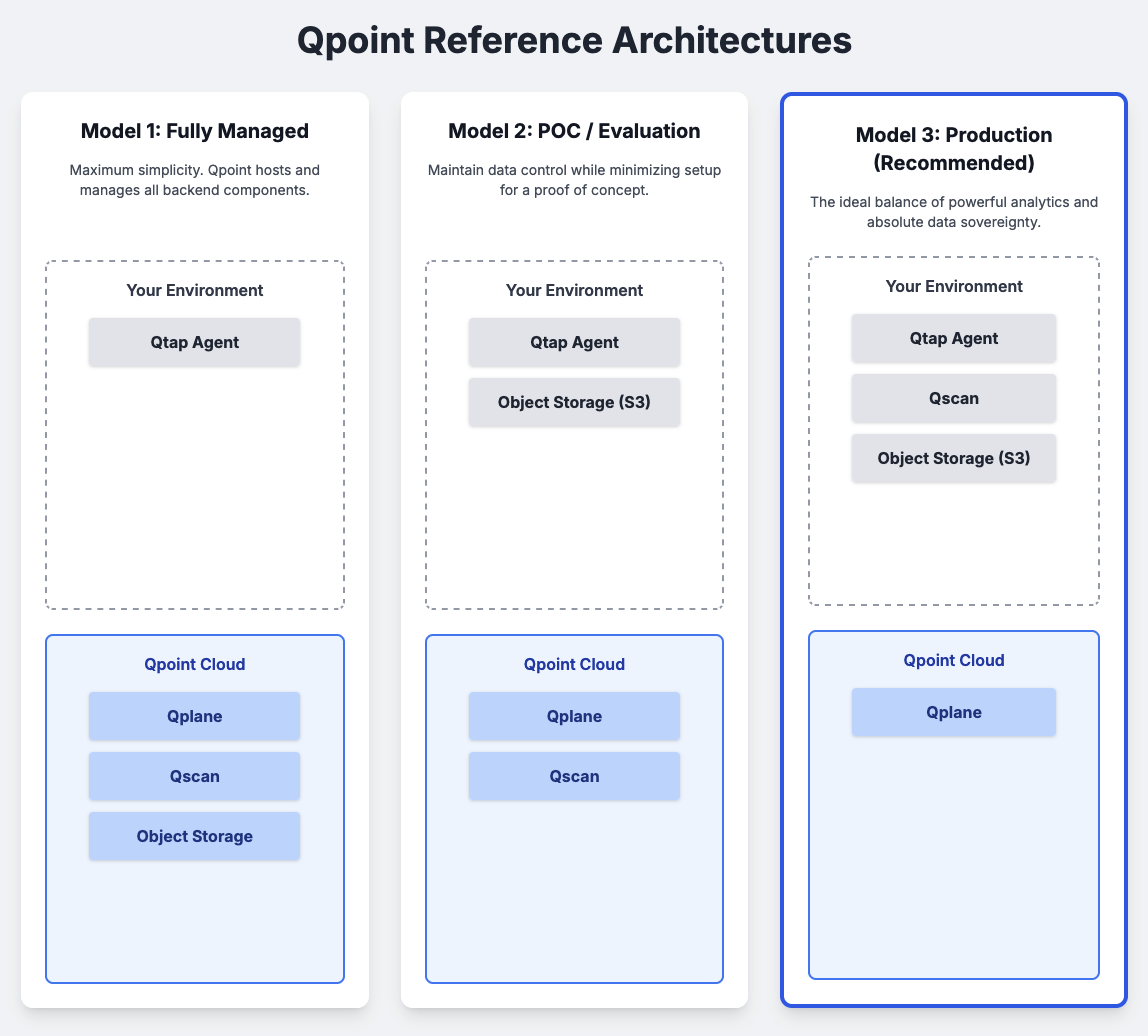
Reference Architecture
## Components
### Qplane (The Control Plane)
**Qplane** is the centralized control plane for cloud-managed deployments, hosted by Qpoint at `app.qpoint.io`.
* **Function:** This is where you configure your Qtap agents (data plane), define rules, view dashboards, and analyze the metadata collected from your services.
* **Event Processing:** Qtap agents (data plane) send anonymized event metadata to the Pulse API gateway (`api-pulse.qpoint.io`) for authentication and ingestion. Events are then stored in ClickHouse, powering Qplane's dashboards, analytics, and alerting features.
* **Security:** Qplane only receives and processes anonymized **Event metadata** (connection info, status codes, timing). When configured properly, it never has access to your sensitive **Object payloads** (request/response bodies).
* **Features:**
* Real-time dashboards and service dependency maps
* Alerting and notifications (Slack, PagerDuty, webhooks)
* Team collaboration and RBAC
* Visual configuration management
* Automatic agent configuration propagation
### Pulse (Event Gateway)
Pulse is Qpoint's API gateway that handles event ingestion from the data plane:
* **Authentication:** Validates registration tokens from Qtap agents (data plane)
* **Ingestion:** Receives anonymized event metadata from data plane
* **Routing:** Forwards events to ClickHouse for storage and analysis
* **Endpoint:** `api-pulse.qpoint.io`
### ClickHouse (Event Database)
ClickHouse is the analytics database that stores event metadata:
* **Purpose:** Powers Qplane's dashboards, traffic analysis, and alerting
* **Data:** Contains only anonymized event metadata (no sensitive payloads)
* **Performance:** Optimized for real-time analytics on high-volume event streams
### Your Object Store
Even in cloud-managed mode, sensitive payloads should be stored in your infrastructure:
* **Recommended:** AWS S3, Google Cloud Storage, or MinIO in your environment
* **Alternative:** Qplane's managed object store (preview/testing only)
* **Access:** When viewing payloads in Qplane UI, your browser fetches directly from your S3 bucket using signed URLs
## AWS Installation & Usage Workflow
### Data Flow
**Events:** Qtap (Data Plane) → Pulse → ClickHouse → Qplane Dashboards (Control Plane)
**Objects:** Qtap (Data Plane) → Your S3 Bucket
### Steps
1. **Host Your Services in AWS:**
* Create an S3 bucket in your AWS account to serve as your **Object Store**.
* (Optional) Deploy the **Qscan** Docker container within your VPC for sensitive data classification.
2. **Install the Data Plane:** Deploy the **Qtap** agent (data plane) onto your EC2 instances or EKS cluster with a registration token from Qplane (control plane). Ensure the environment variables for `AWS_ACCESS_KEY_ID`, `AWS_SECRET_ACCESS_KEY`, and optionally `QSCAN_TOKEN` are available to the agent process.
3. **Configure via Qplane:** Log in to `app.qpoint.io`:
* Configure your S3 bucket and optional Qscan endpoint in Settings → Deploy → Services
* Set up stacks and plugins in Plugins → Stacks
* Define traffic capture rules in Settings → Qtap
* Configuration automatically propagates to all connected agents
4. **Visualize & Analyze:** View real-time dashboards showing:
* Anonymized event data flowing through Pulse to ClickHouse
* Service dependencies and traffic patterns
* Alerts and anomalies
5. **Access Payloads Securely:** When you need to inspect the full payload of a request from the Qplane UI, your browser will be given a URL to retrieve it directly from *your* S3 bucket. This maintains the security boundary, as Qpoint's servers never access the payload data.
## GCP Installation & Usage Workflow
### Data Flow
**Events:** Qtap (Data Plane) → Pulse → ClickHouse → Qplane Dashboards (Control Plane)
**Objects:** Qtap (Data Plane) → Your GCS Bucket
### Steps
1. **Host Your Services in GCP:**
* Create a Google Cloud Storage (GCS) bucket in your GCP project to serve as your **Object Store**.
* (Optional) Deploy the **Qscan** Docker container within your VPC for sensitive data classification.
2. **Install the Data Plane:** Deploy the **Qtap** agent (data plane) onto your Compute Engine VMs or GKE cluster with a registration token from Qplane (control plane). Ensure the environment variables for `GCS_ACCESS_KEY`, `GCS_SECRET_KEY`, and optionally `QSCAN_TOKEN` are available to the agent process (e.g., via metadata, secrets, or environment configuration).
3. **Configure via Qplane:** Log in to `app.qpoint.io`:
* Configure your GCS bucket and optional Qscan endpoint in Settings → Deploy → Services
* Set up stacks and plugins in Plugins → Stacks
* Define traffic capture rules in Settings → Qtap
* Configuration automatically propagates to all connected agents
4. **Visualize & Analyze:** View real-time dashboards showing:
* Anonymized event data flowing through Pulse to ClickHouse
* Service dependencies and traffic patterns
* Alerts and anomalies
5. **Access Payloads Securely:** When you need to inspect the full payload of a request from the Qplane UI, your browser will be given a URL to retrieve it directly from your GCS bucket. This maintains the security boundary, as Qpoint's servers never access the payload data.
***
## Get Started
Ready to deploy with Qplane?
**Quick Start:**
* [POC Kick Off Guide](/guides/qplane-guides/poc-kick-off-guide.md) - Complete setup in 10 minutes
**Configuration Guides:**
* [Settings (Qplane)](/getting-started/qplane/configuration/settings.md) - Configure storage services in cloud control plane
* [Stacks & Plugins](/getting-started/qplane/configuration/stacks-and-plugins.md) - Set up traffic processing pipelines
* [How It Fits Together](/getting-started/qplane/configuration/how-it-fits-together.md) - Deep dive into Qplane architecture
**Back to Overview:**
* [Architecture Overview](/readme/architecture-overview.md) - Compare deployment modes