Devtools Interface Guide
QTap DevTools provides a browser-based interface for inspecting HTTP/S traffic in real-time. The interface is organized into three tabs, each providing a different level of visibility into your system's network activity.
Access DevTools at http://localhost:10001/devtools after enabling with --enable-dev-tools or ENABLE_DEV_TOOLS=true.

Global Controls
The toolbar at the top of every tab includes three controls:
Pause
⏸
Stops the real-time stream. New events are buffered but not displayed until you resume. Useful when you've captured the event you're looking for and want to inspect it without new entries pushing it down the list.
Clear Data
🚫
Wipes the current buffer and starts fresh. Helpful when you want a clean slate before reproducing a specific issue.
Filter
🔽
Opens the filter builder. Lets you narrow down to specific traffic patterns.
Filter System
The filter UI uses a structured query builder with three components:
Key → Operator → Value
Select a key from the dropdown, choose an operator, and type a value to filter the current view. Multiple filters can be combined to narrow results further.
Available Filter Keys by Tab
Requests Tab
method
HTTP method
GET, POST, PUT, DELETE
status
HTTP status code
200, 401, 404, 500
endpoint
Target domain
api.github.com
path
URL path
/v1/users
direction
Traffic direction
egress, ingress
process
Binary that made the request
/usr/local/bin/ruby
Connections Tab
direction
Traffic direction
egress, ingress
source
Source IP address
192.168.3.218
destination
Destination IP address
140.82.112.5
status
Connection state
OPEN, CLOSED
socketProtocol
Transport protocol
tcp
l7Protocol
Application protocol
http1
process
Binary that opened the connection
/usr/local/bin/ruby
user
System user
root, www-data
Processes Tab
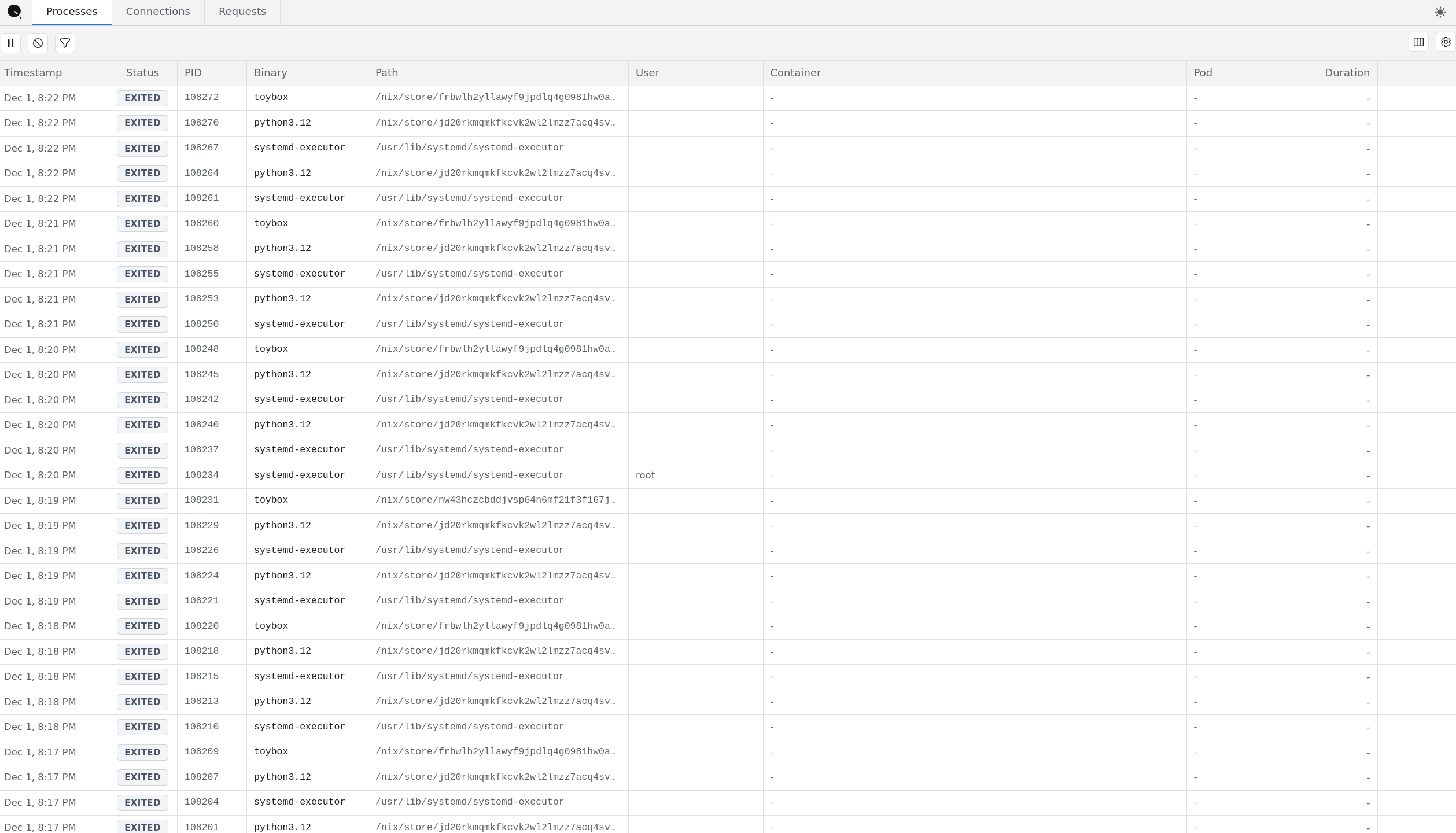
A real-time inventory of every process on the host.

Columns
Timestamp
When the process was observed
Status
RUNNING (green) or EXITED (gray)
PID
Process ID
Binary
Executable name (python3.12, docker, ruby, etc.)
Path
Full filesystem path to the binary
User
Which system user is running the process
Container
Container name, if applicable
Pod
Kubernetes pod name, if applicable
Duration
How long the process has been running
Detail Panel
Click any process row to open the detail panel showing:
Process Info: Binary name, full path, hostname, PID
User Info: Username and UID
Use Cases
See what's actually running on a host, especially in containerized environments
Identify unexpected processes
Correlate processes with network activity in other tabs
Connections Tab
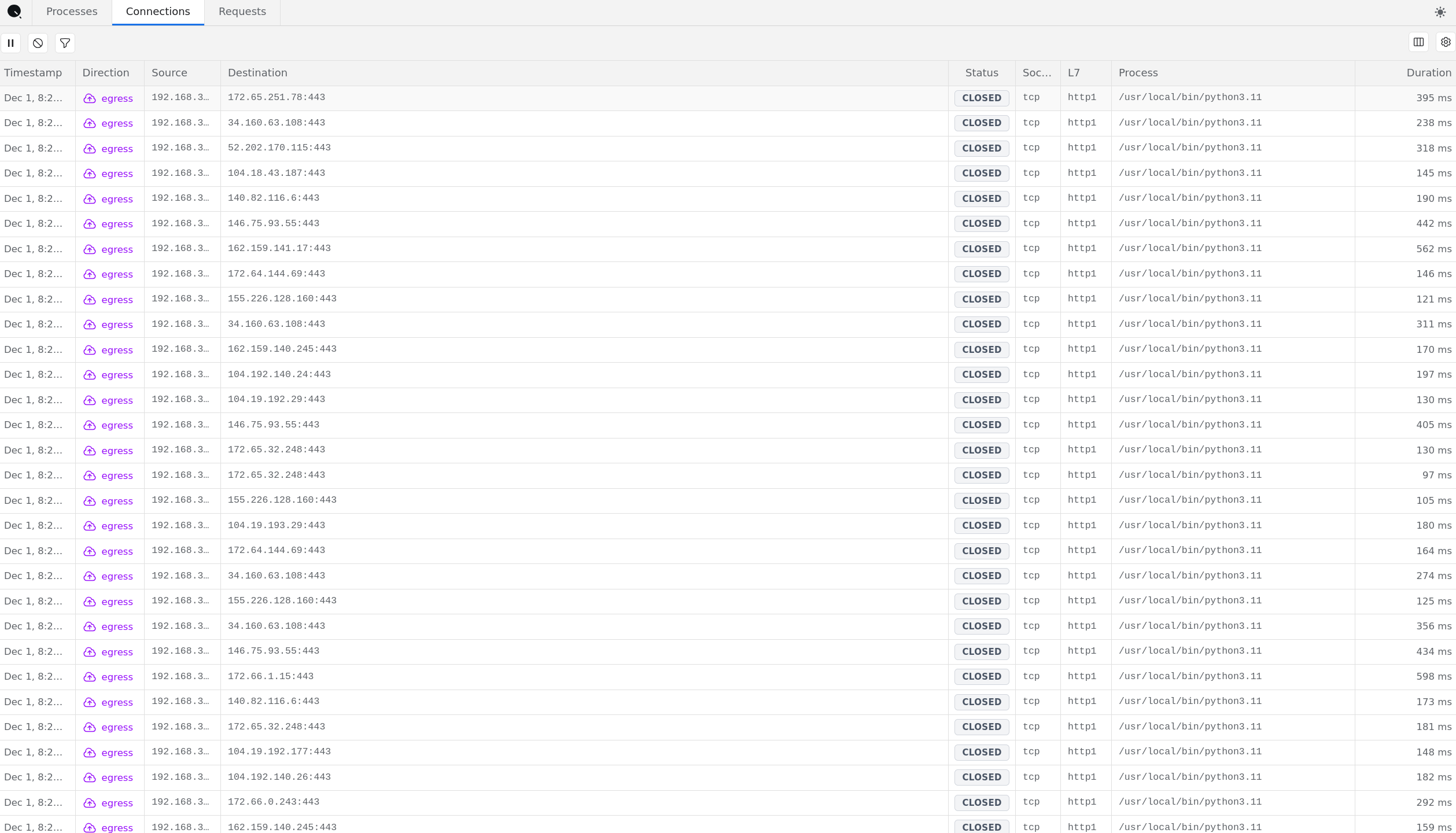
Shows every network connection with process attribution.

Columns
Timestamp
When the connection was observed
Direction
Egress (outbound) or ingress (inbound)
Source
Local IP:port
Destination
Remote IP:port
Status
OPEN (green) or CLOSED (gray)
Socket
Transport protocol (tcp)
L7
Detected application protocol (http1, http2)
Process
Binary that opened the connection
Duration
Connection lifetime
Detail Panel
Click any connection to see:
Connection Info: Unique connection ID, resolved endpoint hostname (e.g.,
api.mailgun.net), creation timestampSource: IP address, hostname, executable path
Destination: Remote IP address
System: Hostname, agent type, agent instance ID
TLS Detection: Which TLS library was detected (openssl, gotls, nodetls, javassl)
Tags: Auto-generated metadata including binary, environment, host, protocol
Use Cases
See which external services your application connects to
Identify unexpected outbound connections
Debug connection timeouts or failures
Understand connection duration patterns
Requests Tab
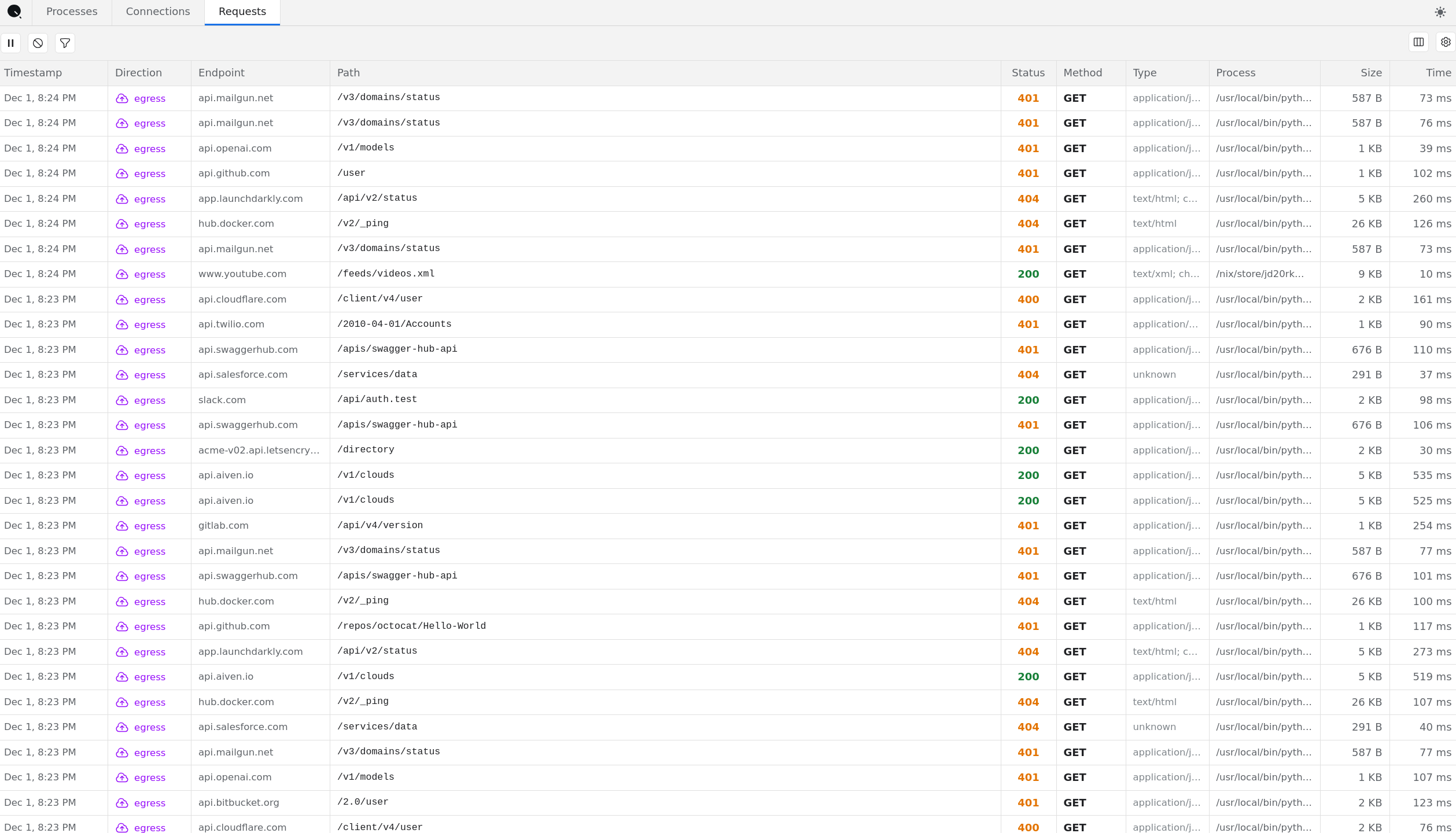
Individual HTTP transactions with full request and response details. This is the closest equivalent to Chrome DevTools' Network tab.

Columns
Timestamp
When the request was made
Direction
Egress or ingress
Endpoint
Target domain (api.github.com, api.stripe.com)
Path
URL path (/v1/customers, /rate_limit)
Status
HTTP status code, color-coded (green=2xx, yellow=3xx, red=4xx/5xx)
Method
HTTP method (GET, POST, PUT, DELETE)
Type
Response content type (application/json, text/html)
Process
Binary that made the request
Size
Response body size
Time
Request duration in milliseconds
Detail Panel
Click any request to see the full transaction details:
Header Bar
Method and status code with timing
Full URL
Size, process path, and container name
Link to the underlying connection

Tabs
Headers
Complete request headers (including Authorization, cookies, custom headers) and response headers
Response
Full response body
cURL
Copy-pasteable cURL command to reproduce the request
Use Cases
Debug authentication failures by seeing the exact Authorization header sent
Inspect API error responses that your application logs don't capture
Compare request structure against API documentation
Export requests as cURL commands for testing
Tips
Debugging a Specific Issue
Click Clear Data to start with an empty buffer
Set up filters to isolate the traffic you care about (e.g.,
endpoint = api.stripe.com)Reproduce the issue in your application
Click Pause once you see the relevant request
Click into the request to inspect headers and response
Finding Unexpected Traffic
Filter by
processto isolate a specific serviceLook at the Connections tab to see all destinations
Check for connections to unexpected endpoints
Investigating Slow Requests
Sort by the Time column to find slow requests
Check the detail panel for timing breakdown
Look at connection duration in the Connections tab to distinguish network latency from processing time
Data Retention
DevTools uses a ring buffer in your browser's memory. Data is ephemeral and cleared on page refresh. For permanent storage, configure S3-compatible object storage in your Qtap configuration.
Last updated