> For the complete documentation index, see [llms.txt](https://docs.qpoint.io/llms.txt). Markdown versions of documentation pages are available by appending `.md` to page URLs; this page is available as [Markdown](https://docs.qpoint.io/guides/devtools-guides/getting-started-with-devtools.md).
# Getting Started with DevTools
Get DevTools running and see your first HTTP/S traffic in under 5 minutes.
DevTools is a browser-based interface for real-time HTTP/S traffic inspection. Think Chrome DevTools Network tab, but for your Linux server.
* See inside HTTPS without proxies or certificates
* Know which process/container/pod made each request
* Full request/response details including headers and bodies
* No application restarts or code changes required
***
## Prerequisites
* Linux host with kernel 5.10+
* Root/sudo access
* A browser to access the DevTools UI
{% hint style="info" %}
**Verify compatibility:** Run the preflight check to confirm your system supports eBPF:
{% code overflow="wrap" %}
```bash
curl -sSL https://github.com/qpoint-io/preflight/releases/latest/download/preflight.sh | sudo bash
```
{% endcode %}
{% endhint %}
***
## Step 1: Install Qtap
{% tabs %}
{% tab title="Linux Binary" %}
```bash
curl -s https://get.qpoint.io/install | sudo sh
```
This installs the `qtap` binary to your system path.
For manual installation, see [Linux Binary Installation](/getting-started/qtap/installation/linux-binary.md).
{% endtab %}
{% tab title="Docker" %}
```bash
docker pull us-docker.pkg.dev/qpoint-edge/public/qtap:v0
```
For detailed Docker setup, see [Docker Container Installation](/getting-started/qtap/installation/docker-container.md).
{% endtab %}
{% tab title="Kubernetes" %}
For Kubernetes deployments, install via Helm:
```bash
helm repo add qpoint https://charts.qpoint.io
helm repo update
helm install qtap qpoint/qtap --set devtools.enabled=true
```
For detailed Kubernetes setup, see [Helm Chart Installation](/getting-started/qtap/installation/helm-chart.md).
{% endtab %}
{% endtabs %}
***
## Step 2: Run with DevTools Enabled
{% tabs %}
{% tab title="Linux Binary" %}
```bash
sudo qtap --enable-dev-tools
```
Qtap starts capturing traffic immediately. DevTools is now accessible.
{% endtab %}
{% tab title="Docker" %}
```bash
docker run -d --name qtap \
--user 0:0 --privileged \
--cap-add CAP_BPF --cap-add CAP_SYS_ADMIN \
--pid=host --network=host \
-v /sys:/sys \
-v /var/run/docker.sock:/var/run/docker.sock \
-e TINI_SUBREAPER=1 \
-e ENABLE_DEV_TOOLS=true \
--ulimit=memlock=-1 \
us-docker.pkg.dev/qpoint-edge/public/qtap:v0 \
--log-level=info
```
The `-e ENABLE_DEV_TOOLS=true` environment variable enables the DevTools UI.
{% endtab %}
{% tab title="Kubernetes" %}
If you installed with `--set devtools.enabled=true`, DevTools is already enabled.
Port-forward to access DevTools locally:
```bash
kubectl port-forward pod/qtap-xxxxx 10001:10001
```
Replace `qtap-xxxxx` with your actual pod name from `kubectl get pods`.
{% endtab %}
{% endtabs %}
***
## Step 3: Access DevTools
Open your browser and navigate to:
```
http://localhost:10001/devtools
```
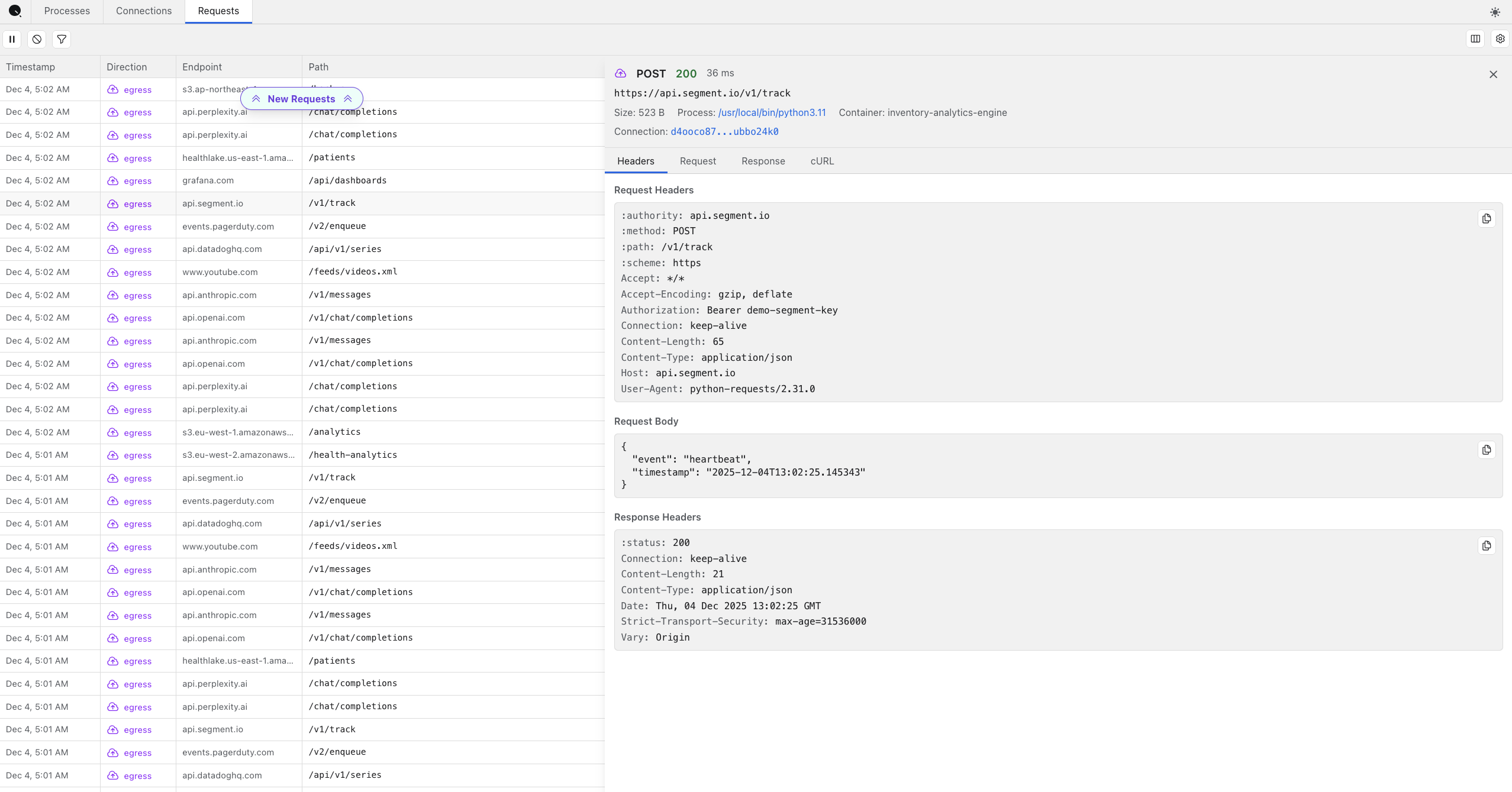
You should see the DevTools interface with three tabs: **Processes**, **Connections**, and **Requests**.
For remote servers, use SSH port forwarding:
```bash
# From your local machine
ssh -L 10001:localhost:10001 user@remote-server
# Then open in your local browser
open http://localhost:10001/devtools
```
***
## Step 4: Verify It Works
Generate some test traffic to confirm DevTools is capturing:
```bash
# In a separate terminal on the same host
curl https://httpbin.org/get
curl -X POST https://httpbin.org/post -d "test=data"
```
Switch to the **Requests** tab in DevTools. You should see:
* The `GET` and `POST` requests to `httpbin.org`
* Status codes (200)
* The process that made the request (`curl`)
* Request timing
Click on any request to see:
* Full request headers
* Response body
* A copy-pasteable cURL command
{% hint style="success" %}
**Success!** If you see the requests appear in DevTools, everything is working. You're now capturing HTTP/S traffic with full visibility.
{% endhint %}
***
## Quick Tour
DevTools has three tabs:
Tab
What It Shows
Processes
Real-time inventory of all processes on the host
Connections
Network connections with process attribution
Requests
Individual HTTP transactions with full details
For a detailed walkthrough of the interface, see the [DevTools Interface Guide](/guides/devtools-guides/devtools-interface-guide.md).
***
## Next Steps
* [**DevTools Interface Guide**](/guides/devtools-guides/devtools-interface-guide.md) - Learn all the features of the DevTools UI
* [**Storage Configuration**](/getting-started/qtap/configuration/storage-configuration.md) - Save captured traffic to S3 for permanent storage
* [**Traffic Capture Settings**](/getting-started/qtap/configuration/traffic-capture-settings.md) - Filter and customize what traffic is captured
* [**Qplane**](/getting-started/qplane.md) - Centralized management for multi-host deployments
***
## Troubleshooting
### DevTools Not Loading
1. **Check Qtap is running:**
* Binary: `ps aux | grep qtap`
* Docker: `docker ps | grep qtap`
2. **Verify DevTools is enabled:**
* Binary: Must include `--enable-dev-tools` flag
* Docker: Must include `-e ENABLE_DEV_TOOLS=true`
3. **Check the port:**
* Ensure nothing else is using port 10001
* Verify with `curl http://localhost:10001/devtools`
### No Traffic Appearing
1. **Qtap must be running BEFORE traffic is generated** - Restart qtap, then make requests
2. **Check traffic direction** - Default captures egress (outbound) traffic
3. **Verify the event stream is working** - Check the raw API to confirm events are flowing:
```bash
curl -sN http://localhost:10001/devtools/api/events | head -20
```
You should see SSE events like `event: process.started` and `event: connection.opened`. If events are streaming but the UI is empty, try refreshing your browser.